The message box
Give Athena pictures, files and links, use slash commands, and speak instead of typing.
Everything you send Athena goes through the box at the bottom of the Athena page. As well as typing, you can attach things, use a command, or dictate.
- Enter sends, and Shift+Enter starts a new line.
- Up and Down, with the cursor on the first line, step through your last 10 requests, so you can send one again or change it.
- The mode picker beside the send button sets how much Athena does without asking, and Shift+Tab switches it. See Modes.
Attach pictures, files and links
Click + in the box.
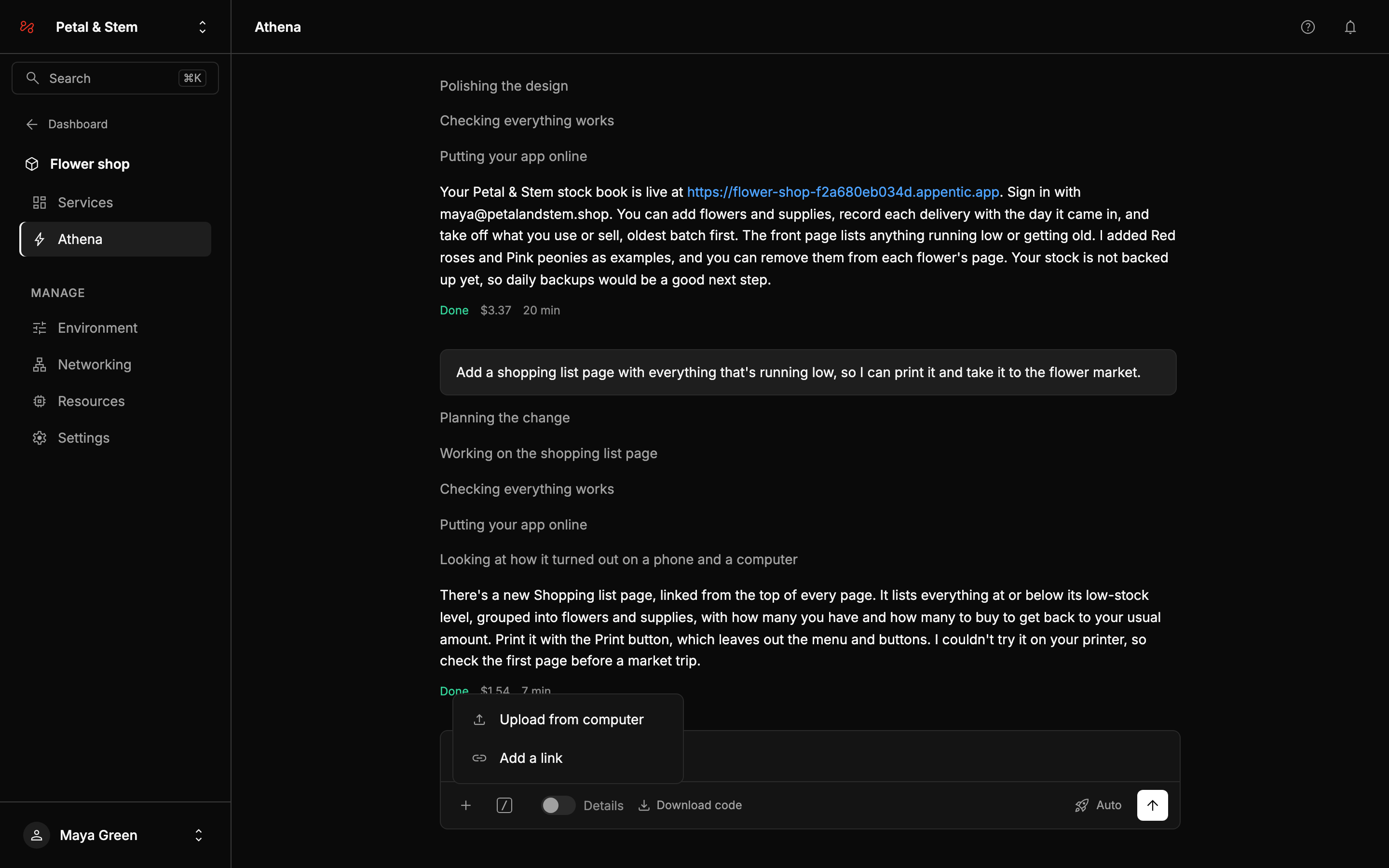
- Upload from computer. Pictures (PNG, JPEG, GIF or WebP), text files (such as notes, a spec or a CSV of data), or a PDF.
- Add a link. A website for Athena to look at, such as one whose design you like.
You can also paste a screenshot into the box, or drag files onto it. Click × on an attachment to take it off before you send. A message can carry six attachments, and attachments you haven't sent yet are still there if you reload the page.
Pictures up to 5 MB, PDFs up to 10 MB, and text files (.txt, .md, .csv, .json, .yaml, .html or .css) up to 1 MB.
Then say what they're for, for example:
Make the board look like the screenshot: the same layout and dark theme.
Pictures are design input. Athena sees them with your message and follows their layout, colours and type unless you say otherwise. Files are context. Athena reads short text files straight away and searches longer ones. It reads a PDF's text. Links are opened in a browser and looked at on a computer and a phone, before Athena designs anything.
Attachments stay with your app
Athena keeps what you attach with your app's code, so it still follows your pictures weeks later without you attaching them again. They come with the code when you download it.
When a request changes how the app looks, Athena checks the result against your most recent pictures.
Before a picture reaches Athena or your code, Appentic scales it down to the size the AI reads at and removes everything else a photo carries, such as where it was taken. Attachments are private to your project and are deleted with it.
Slash commands
Type / at the start of the box, or click the / button next to +, to see the commands in four sections. Keep typing to narrow the list, use the arrow keys to choose, and press Enter or Tab. Add what you mean after a command where it helps, such as /fix adding a delivery shows an error.
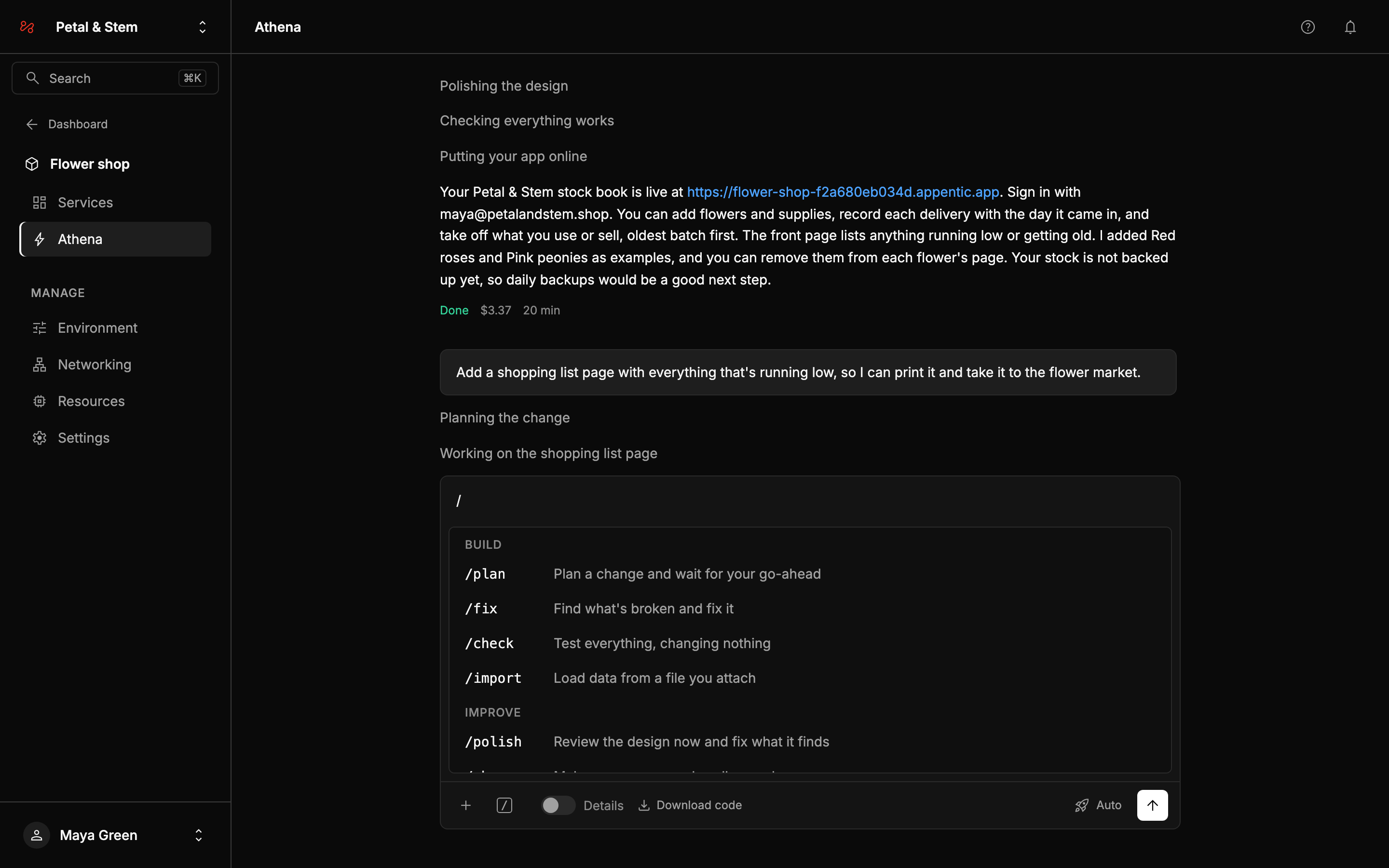
Commands under Your app and Athena run as soon as you pick them, and /secret opens its form. To add something after one, such as /backups on, type it out instead.
Build
| Command | What it does |
|---|---|
/plan | Plans a change and waits for your go-ahead before building anything. Reply "go ahead" to build it. |
/fix | Finds what's broken and fixes it. Say what you see after it. |
/check | Tests everything and looks at the main pages on a phone and a computer, then tells you what works. Changes nothing. |
/import | Loads data from a file you attach, such as a spreadsheet of customers saved as CSV, into your app, and tells you how many rows went in and any that didn't fit. |
Improve
| Command | What it does |
|---|---|
/polish | Reviews the design of the main pages now, on a phone and a computer, even if nothing changed, and fixes what a visitor would notice. If the review finds nothing, nothing changes. |
/phone | Goes through the pages your app's menus lead to on a phone, and fixes what's cramped, too small to tap or hard to read. If nothing needs it, nothing changes. |
/speed | Finds what's slow and makes it faster. |
/secure | Checks who can see and change what, fixes what's wrong, and tells you what it checked. |
Your app
| Command | What it does |
|---|---|
/status | Whether your app is working, when it last changed, what it runs on, whether it's backed up, your domains, and what it costs a month. |
/undo | Takes back the last request. The version from before it goes back online without a rebuild, and its code is restored so Athena starts from it. Anything people added in the app since stays. Send it again to go back further. |
/secret | Adds an API key or password your app needs. See Secrets. |
/domain | Connects your own domain, such as /domain petalandstem.com, at no extra cost. You get the records to add where you bought the domain, and it's secure (HTTPS) within minutes of adding them. On its own, /domain lists your domains. |
/backups | Shows whether your database is backed up. /backups on turns on continuous backups with 7 days of restore points, and /backups off turns them off. |
/firewall | Puts a Firewall in front of your app, which blocks attacks, bots and floods. It first says what it costs, with a button to go ahead. |
/volume | Gives your database more storage with a volume. /volume 50 asks for 50 GB, in steps of 10, and the default is 20 GB. It first says what it costs, with a button to go ahead. |
Athena
| Command | What it does |
|---|---|
/cost | What your app costs a month to run, what Athena has cost on this project, your balance, and the balance at which you're emailed a low-balance alert. |
/clear | Starts a fresh conversation. Athena keeps your app, its plan and your attachments, but later requests no longer carry anything from before this point. |
/help | Lists what Athena can do and these commands. |
The commands under Your app and Athena are answered straight away by the page, in italics, and use no Athena credit. The ones that add a monthly fee, such as /backups on, /firewall and /volume, say the price first. The others are requests like any other, with a set job.
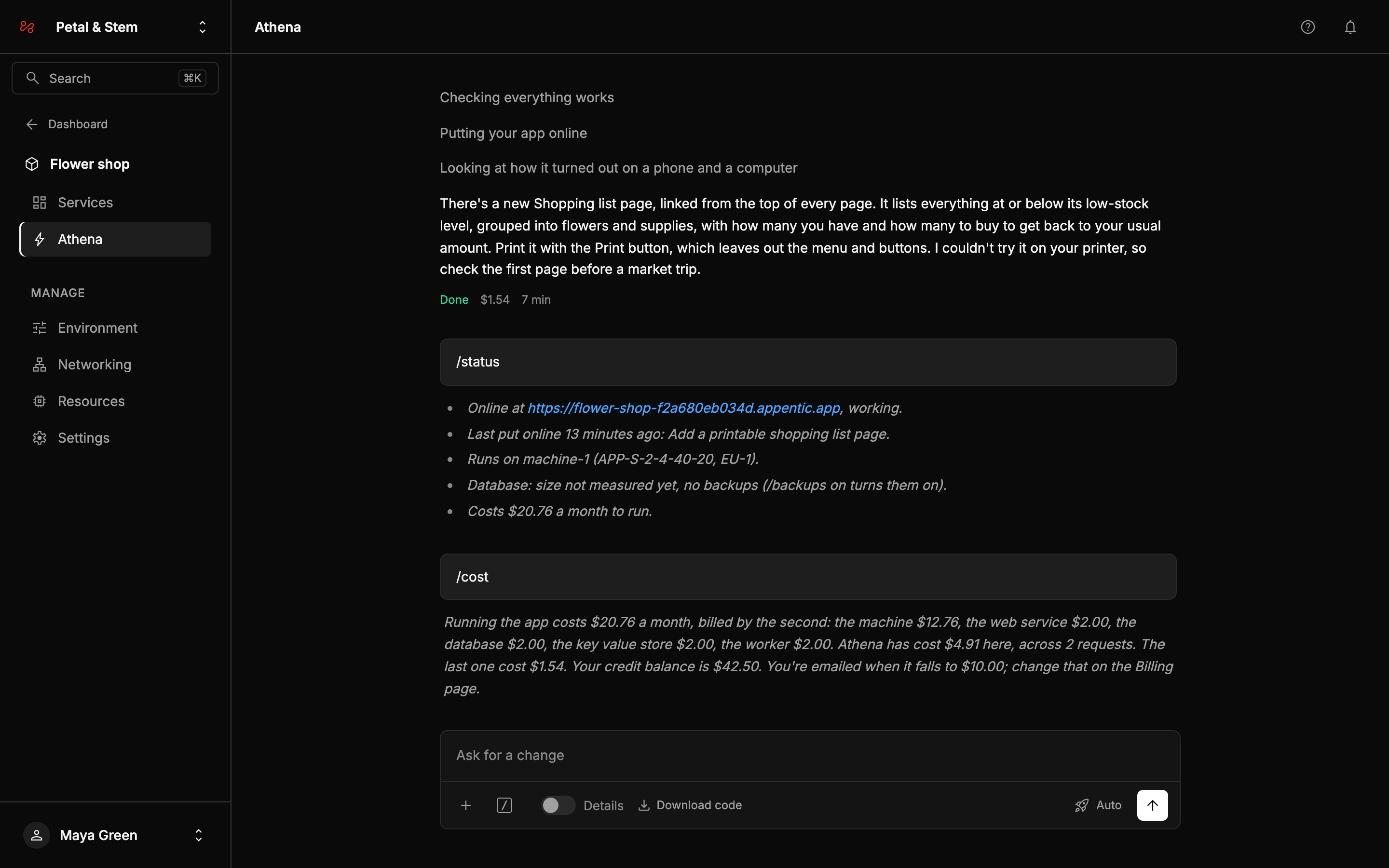
Anything that costs money or changes your live app, such as /backups on, /backups off or /undo, first says what it will do, with a button to go ahead, such as Take it back. The button works once.
Athena knows about these changes the next time you ask.
Secrets
/secret opens Add a secret, with a Name, such as RESEND_API_KEY, and a Value. Click Save. The value goes straight into your project's environment, encrypted, and appears on the project's Environment page like any other variable. A running app restarts with it within a few seconds, without a rebuild.
The value never goes into the conversation. Athena can use the key by name but never sees its value, so don't paste keys or passwords into a message.
Typing /secret stripe_key opens the window with the name filled in. Anything else you type after /secret is thrown away, never sent.
Athena can also ask you for a secret it needs, in a similar form. See Secrets.
Details
Athena's steps are written for anyone to follow. Turn on Details, next to / in the box, to see what's behind them. That includes its working notes, the files it reads and changes, and the commands it runs.
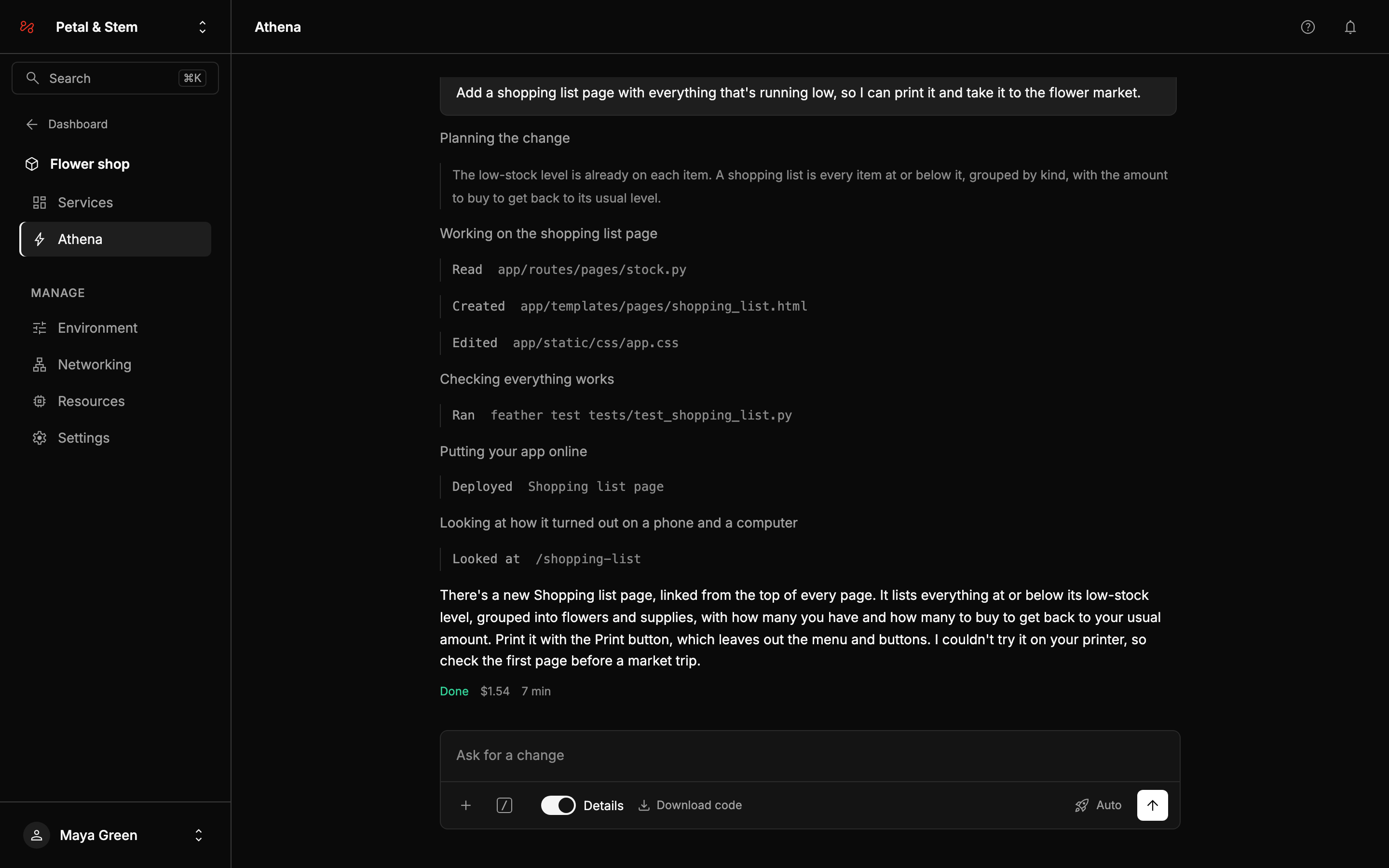
Your browser remembers the choice. Details show for every request in the conversation, including ones that finished earlier.
Dictate
Click the microphone in the box and speak. Your words appear in the box as they're recognised, after anything you had already typed. Click the microphone again to stop, then send as usual.
Your browser turns speech into text. Your voice never goes to Appentic. In browsers that could only do it by sending your voice to another online service, the microphone doesn't appear.
The first time in Chrome, it takes a minute or two to get ready, and the page tells you when it is.